
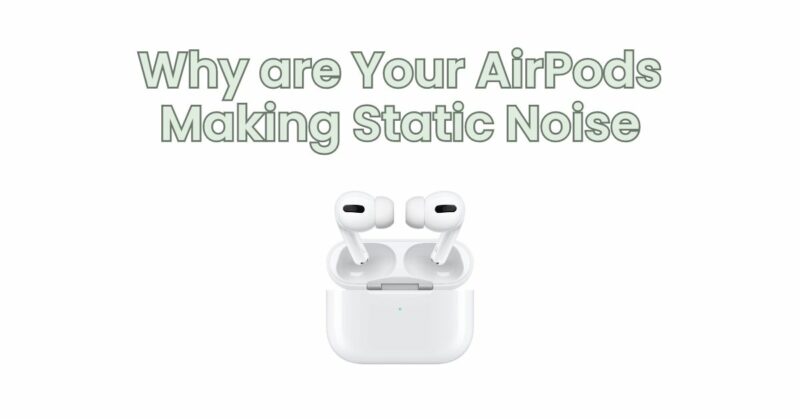
AirPods, Apple’s popular wireless earbuds, provide a seamless and convenient audio experience. However, some users may encounter static noise while using their AirPods, which can be disruptive and frustrating. In this article, we will explore the potential causes of static noise on AirPods and provide troubleshooting steps to help you resolve the issue.
Possible Causes of Static Noise on AirPods:
- Poor Bluetooth Connection: A weak or unstable Bluetooth connection between the AirPods and the connected device can result in static noise. This can occur if there are obstructions or interference between the devices.
- Low Battery Level: When the battery level of your AirPods or the connected device is low, it can lead to static noise or interference in the audio playback.
- Environmental Interference: Strong electromagnetic fields or other wireless devices in the vicinity can cause interference and introduce static noise into the audio signal.
- Software or Firmware Issues: Occasionally, software or firmware glitches can affect the performance of the AirPods, resulting in static noise during audio playback.
Troubleshooting Steps:
- Check Bluetooth Connection: Ensure that your AirPods are properly connected to the device. Try moving closer to the connected device to improve the Bluetooth signal strength. If possible, remove any obstructions or devices that may cause interference between the AirPods and the device.
- Check Battery Levels: Verify that both your AirPods and the connected device have sufficient battery charge. If either the AirPods or the device is low on battery, it may cause static noise or audio issues. Charge the AirPods and the device as needed.
- Reset AirPods: Resetting your AirPods can help resolve minor software or firmware issues. Place the AirPods in the charging case, open the lid, and press and hold the setup button on the back of the case until the LED indicator on the front starts flashing white. Set up the AirPods again and check if the static noise persists.
- Update Firmware: Ensure that both your AirPods and the connected device have the latest firmware or software updates. Apple regularly releases updates that address known issues and improve performance. Check for updates and install them if available.
- Minimize Environmental Interference: Move away from sources of strong electromagnetic fields, such as large appliances, power lines, or other wireless devices. Additionally, try using the AirPods in a different location or away from devices that may cause interference.
- Test on Another Device: Connect your AirPods to another compatible device to determine if the static noise persists. If the issue is specific to one device, there may be compatibility or settings issues with that device.
- Contact Apple Support: If none of the above steps resolve the static noise issue, it is recommended to contact Apple Support or visit an authorized service center for further assistance. They can provide additional troubleshooting steps or arrange repairs if necessary.
Experiencing static noise on your AirPods can be frustrating, but by following the troubleshooting steps outlined in this article, you can often resolve the issue. Remember to check the Bluetooth connection, ensure sufficient battery levels, reset the AirPods, update firmware, minimize environmental interference, and seek professional assistance if the problem persists. Enjoy uninterrupted and clear audio playback with your AirPods.